.jpg)
Reclaim Valuable Time with PracticeQ’s Seamless Workflow Automation
Key Takeaways
- PracticeQ automates intake, reminders, follow-ups, and billing so your team can focus on care.
- Workflows run on triggers, conditions, and actions that eliminate manual effort without any coding.
- Practices reclaim up to seven staff hours per provider each week and reduce no-shows.
- Automation keeps data secure with role-based permissions, audit trails, and consent checkpoints.
- PracticeQ connects with EHR and billing systems to remove double entry and simplify handoffs.
Every week, healthcare practices complete dozens of repetitive administrative tasks, from sending intake forms and appointment reminders to following up with patients and transferring information to billing.
Healthcare workflow automation uses software to complete these routine steps when a specific event, condition, or schedule triggers them. Instead of relying on staff to remember and perform every task manually, practices can create automated workflows that send forms, deliver messages, assign tasks, update records, and move information between systems.
With fewer manual handoffs, providers and staff can spend less time managing administrative work and more time supporting patients. Here is how PracticeQ’s workflow automation tools can help practices save time throughout the patient journey.
Here’s how PracticeQ’s automation tools help providers save hours every week.
What Is Healthcare Workflow Automation?
Healthcare workflow automation connects routine clinical and administrative tasks into a repeatable sequence that runs with less manual effort. In PracticeQ, custom workflows are built using three core elements: triggers, conditions, and actions.
- Triggers start the workflow when an event occurs, such as an appointment being booked or a form being completed.
- Conditions determine when and how the workflow continues, like targeting specific visit types or patient groups.
- Actions complete the task by sending a message, assigning a task, or updating a record.
Together, these elements create reliable processes that keep your clinic running smoothly.
For example:
- When an appointment is booked → send the intake packet automatically.
- If a form is incomplete → send a reminder to the patient.
- After a visit is marked complete → notify billing or generate a follow-up form.
These workflows connect each part of the patient journey. They reduce errors, prevent missed steps, and free your team from repetitive administrative work.
5 Healthcare Workflow Automation Examples That Save Staff Time
The best processes to automate are usually repetitive, rules-based, and tied to predictable events in the patient journey. The following healthcare workflow automation examples show where practices can reduce manual work without removing staff oversight or personal patient communication.
Below are five areas where your practice can see the biggest impact.
New Patient Intake (Forms + Insurance Capture)
The first impression often happens long before a patient walks in. If your intake still depends on paper forms or PDFs, you know how much time goes into printing, scanning, and retyping information.
With PracticeQ, intake packets go out automatically once an appointment is booked. Patients can complete forms securely, upload IDs and insurance cards, and sign consents online. Staff can review and validate coverage before the visit, so everything is ready when the patient arrives.
The result is faster check-ins and fewer errors, with no manual data entry.

Reminders and Confirmations
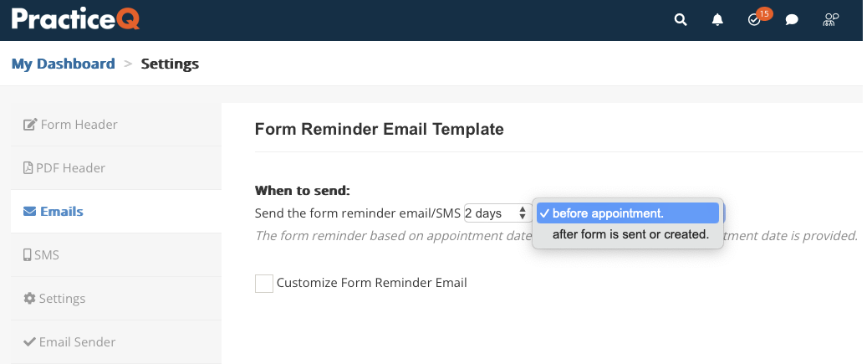
Reminders shouldn’t be a daily task list. PracticeQ automates them across email, SMS, and the patient portal so no appointment slips through.
You can schedule reminders based on appointment time, confirm responses in real time, and include links for easy rescheduling. Patients appreciate the convenience, and your team saves hours each week that would have gone to phone calls.
No-Show and Cancel Recovery
Even the best scheduling system can’t prevent every cancellation, but automation can help you recover that time. When patients haven’t confirmed, PracticeQ sends a timely reminder or a reschedule prompt. From there, you can fill open slots by directing patients to your online booking page.
That means fewer gaps, smoother days, and more time spent where it matters most.
Post-Visit Follow-Ups
The visit might end, but the relationship doesn’t. Consistent follow-ups build trust and improve outcomes.
PracticeQ can send outcome surveys, care plan reminders, or educational materials automatically after each visit. You can adjust timing and content by provider or appointment type, keeping communication personal without extra effort.
Billing and Documentation Handoffs
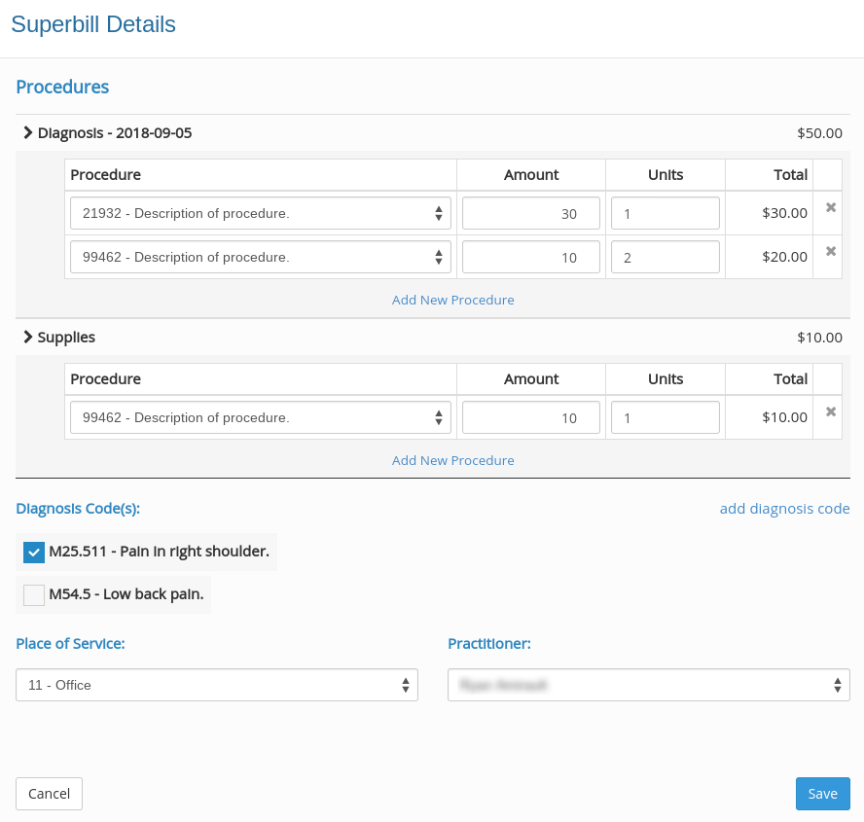
After each visit, documentation needs to move quickly to billing. Doing it manually means copying notes, generating superbills, and flagging incomplete charts.
With PracticeQ, these steps can run automatically. The system pushes visit data to billing, generates superbills, and alerts staff to missing details. That means fewer delays, fewer errors, and faster reimbursement.
3 Medical Practice Workflow Automation Templates You Can Copy
The following blueprints show how you can turn routine clinic tasks into reliable workflows that run on their own. Use them as a starting point, then customize the details to fit your practice.
Blueprint 1: Intake Packet + Insurance Verification Loop
This workflow replaces emails and paper packets with a smooth, automated intake process.
- Appointment booked. The system sends the correct intake form automatically.
- Form completed. The patient uploads their ID and insurance card.
- Staff review. Your team checks details and verifies coverage.
- Confirmation. The patient receives a message that their information has been received and approved.
Each visit starts with accurate, complete data without printing, scanning, or chasing forms.
Blueprint 2: Reminder → Confirm → Reschedule
Scheduling doesn’t need to be a guessing game. This workflow keeps your calendar full without manual coordination.
- Reminder sent 24 hours before the appointment. Patients receive an automatic message with confirmation and reschedule options.
- If confirmed. The appointment is marked as ready to go.
- If no response. A follow-up reminder goes out to give the patient another chance to confirm or choose a different time.
- If they reschedule. The original slot becomes available on your calendar, and your team can decide how to manage that opening.
- Once the change is made. PracticeQ updates the appointment and sends the appropriate confirmation message automatically.
It’s a simple sequence that keeps your day organized, minimizes no-shows, and fills last-minute openings automatically.
Blueprint 3: Post-Visit Care Plan + Review Request
Follow-up supports outcomes and patient satisfaction, but it’s easy to miss when the schedule is full. This workflow keeps communication consistent without adding work.
- Three days after visit. The system sends a short check-in or care plan reminder.
- After completion. The patient receives a satisfaction survey or review request.
- If no response. A reminder goes out later to maintain engagement.
It’s a quick way to keep patients connected and collect feedback that helps your practice improve.
How to Automate a Healthcare Workflow Step by Step
Building a custom workflow in PracticeQ doesn’t require technical skills or coding. You’re simply connecting steps that already happen in your practice and letting automation handle them for you. Here’s how to set one up from start to finish.
Pick a Trigger (Event, Time-Based, or Status Change)
Every workflow starts with a trigger. This is the event that tells the system when to act. Common triggers include booking an appointment, completing a form, or closing a visit. The right trigger ensures automation happens exactly when it’s needed.
Add Conditions (Provider, Location, or Visit Type)
Conditions refine your workflow so it runs only where it’s relevant. You can target specific providers, locations, or visit types to keep automation precise and organized.
Choose Actions (Send Form, Message, or Task)
Actions are the steps your workflow performs automatically, such as sending forms, reminders, or internal tasks. Each one replaces a manual action and keeps your day moving without interruption.
Test and Roll Out
Run your workflow in test mode to confirm that each step works as expected. Once you’re confident, roll it out to your team. Start small, refine, and expand from there.
Measuring Time Saved (and What to Track)
Once your workflows are running, measure how they affect your team’s time and efficiency.
Track a few key areas: how long intake takes to complete, your no-show rate, and how many manual tasks each staff member handles. These numbers help you see where automation delivers the most value and where to adjust.
Practical Workflow Automation Metrics to Track
Set a baseline before launching a workflow, then compare results after implementation. Useful metrics include:
- Time staff spend preparing and reviewing intake information
- Number of manual reminder calls or messages sent
- Percentage of forms completed before appointments
- Appointment confirmation, cancellation, and rescheduling rates
- Number of incomplete billing or documentation handoffs
- Manual tasks completed per appointment
- Staff time spent resolving missing information
These measurements help show whether a workflow is reducing repetitive work, preventing missed steps, and improving the patient experience.
Compliance, Privacy, and Guardrails for Automation
Automation should never come at the cost of security. PracticeQ’s workflows meet HIPAA standards and protect patient data at every step. Role-based permissions control access, and audit trails record all automated actions for transparency.
Just as important, these same safeguards apply to every workflow you build. Patient consent checkpoints ensure information is shared only with approval, and reduced manual handling lowers the risk of error. Together, they make your operations faster, safer, and fully compliant.
Integrations: Making Workflows Talk to Your EHR and Billing
A workflow is most effective when it connects with the systems you already use. PracticeQ integrates with leading EHR and billing platforms so information moves automatically between tools without duplicate entry.
In practice, you can automate forms, reminders, and follow-ups in PracticeQ while syncing completed data directly to your EHR or billing software. This keeps records consistent across systems and removes extra steps for your team.
By connecting these systems, you reduce handoffs, eliminate repetitive data entry, and keep every part of your workflow running in sync.
Getting Started: Templates vs. From-Scratch Builds
If you’re new to workflow automation, the easiest place to start is with a template. PracticeQ offers ready-made templates for common processes like intake, reminders, and follow-ups. Each one is fully configurable, so you can adjust triggers, timing, and messages to match how your practice already operates.
For clinics with established systems, building from scratch gives full control over every step. You can define your own triggers, add conditions, and design workflows that mirror your exact patient flow.
Whichever path you choose, start simple. Test one workflow, refine it, and expand from there. PracticeQ’s templates and builder tools make it easy to scale automation at your own pace without disrupting your day-to-day operations.
Save hours every week with smarter automation by PracticeQ. Start your free trial to build your first workflow in minutes.
FAQs
What healthcare tasks can be automated?
What is the difference between a workflow and an automation?
Can workflows handle different providers, locations, or visit types?
Will automation replace the personal touch with patients?
How do reminders and confirmations reduce no-shows?
How to Be Attentive (Not Annoying) with Patient Communication & Follow-Up. (2019, August 19). IntakeQ. https://forms.intakeq.com/blog/how-to-be-attentive-not-annoying-with-patient-communication-follow-up
Joseph, C., & Melder, A. (2018). Short Message Service (SMS) Appointment Reminders: A Rapid Review Executive Summary Background and Objective. https://monashhealth.org/wp-content/uploads/2019/01/SMS-Ourpatient-Clinic-App-Rapid-Review-Final.pdf
Norton, C. (2025, August 1). Superbills Explained: What Therapists Need to Know. PracticeQ. https://www.practiceq.com/resources/superbills-explained-what-therapists-need-to-know